- A five-minute check you can follow: file state, metadata, other online copies, visible anomalies, then signal and provenance checks.
- Three common file patterns — camera original, edited export and screenshot — and how their clues can differ.
- A clear separation between observation, interpretation and what still cannot be proved.
Quick test: which one is the photo we started from?
Before looking at metadata or compression clues, compare A through D. They all come from the same café scene. One is the camera photo used as the starting point; the others went through a normal edit and JPEG export, crop/resize/recompression, or a screen-capture step. If appearance were all you had, which would you choose?




Each image above is loaded as a separate file so you can compare it at a useful size. The point is the processing history of the underlying files, not the metadata of this article page.
Show the answer and what changed
A is the camera photo used as the starting point. B was given ordinary brightness, contrast and saturation adjustments and exported again as JPEG. C was cropped slightly, resized and saved again as JPEG. D is a landscape screen-capture derivative. All four can look perfectly plausible at a glance.
That is the point of the exercise: visual confidence is not the same thing as forensic evidence. The useful questions begin with file structure, dimensions, metadata, recompression and the rest of the observable workflow traces.
Start by shrinking the question
“Was this photo edited?” sounds binary, but almost every normal image workflow complicates it. Cropping is an edit. Rotating is an edit. A phone can re-save an image. A social platform can resize and recompress it automatically. A screenshot creates a new file from rendered pixels. None of those facts, by itself, tells you that the picture is deceptive.
A better forensic question is: what observable processing or workflow traces are present in the file I have now? That shift matters because image forensics is strongest when it describes evidence before it tries to explain motive.
A five-minute first pass you can actually follow
If the source file is available, prefer it over a screenshot or re-downloaded copy. Note the format, pixel dimensions and file size before interpreting anything else.
Look for camera, time, software and workflow fields, but treat them as information present in the current file — not as an untouchable history. Missing metadata does not mean “not edited.”
An earlier or higher-quality version can be more useful than another pass over the same compressed file. Compare framing, dimensions, text, objects and context across versions.
Check edges, repeated textures, text, straight lines, perspective, shadows and reflections. Treat anything unusual as a place to investigate, not as a verdict.
Specific watermark signals, Content Credentials and system-specific markers answer narrower questions. Combine them with the file-state evidence instead of letting one result decide everything.
This order is deliberately practical: establish what file you have, gather independent observations, then ask what each observation can actually support.
Worked example: three files that can look almost the same
The following is an illustrative walkthrough, not a claim that every camera, editor or screenshot behaves identically. The point is to show how the evidence changes depending on the file path.
Camera original
You may see camera model, capture time, exposure data, GPS if enabled, and dimensions that match the capture. None of those fields are untouchable, but together they can describe the current file’s declared capture context.
Edited JPEG export
The visible scene may be unchanged while dimensions, quantization behavior, timestamps or software declarations differ. A software name can support “this application wrote a declaration,” not “this application created the original scene.”
Screenshot
The original file container is no longer being copied. Camera EXIF commonly does not travel into the new screenshot file; the new dimensions and capture context belong to the screenshot process.
Do not score clues as guilty or innocent.
Ask whether independent observations agree. A missing camera block plus screenshot-like dimensions may be coherent. A software declaration plus another encode step may be coherent. When observations conflict, that tension is itself useful — but it is still not a universal authenticity verdict.
If the image is public, compare it with other copies
Reverse-image search can add context that the file alone cannot provide. Google Lens can surface visually similar images and pages using the same or a similar image. Google’s About this image, where available, can also show when Google may have first seen similar versions and where earlier uses appeared.
Compare versions rather than assuming the oldest result is automatically the original. A different crop, caption, resolution or object arrangement can help you form a better question about what changed and when. If the photo is private, personal or confidential, skip external reverse-image search unless you are comfortable submitting it to that service; the local-file checks in this guide still apply.
Zoom in, but treat visual oddities as leads
- Edges and halos: look for boundaries that are much sharper or softer than nearby detail.
- Repeated texture: duplicated foliage, skin texture, clouds or background patterns can be worth a second look.
- Text and geometry: warped lettering, broken straight lines or inconsistent perspective can point to a region that deserves closer inspection.
- Light, shadow and reflection: ask whether direction and shape make sense together across the scene.
None of these is a universal manipulation detector. Compression, sharpening, HDR, portrait blur, panorama stitching, screenshots and ordinary editing can create similar artifacts. Use a visual anomaly to decide where to investigate next, not to jump straight to “fake” or “AI-generated.”
Metadata: useful context, weak as a stand-alone verdict
EXIF, XMP, IPTC and format-specific metadata can expose camera settings, timestamps, software declarations or workflow records. A software tag can show that an application wrote or preserved a value in the current file. It does not establish who created the image or every edit that occurred.
Missing metadata is just as ambiguous. Screenshots, privacy exports, messaging services, converters and ordinary editing tools can remove it. This is why the useful question is not “Is EXIF present?” but “Which structures are present, what do they say, and are those observations compatible with the rest of the file?”
For actual structures and examples, continue with What Can Image Metadata Tell You About a Photo?.
JPEG recompression: a clue about file state, not intent
JPEG is lossy. Re-saving it performs another quantization step. Analysts can inspect quantization tables, block behavior and other compression-related patterns to form hypotheses about prior processing. But automatic platform processing can produce the same broad class of clue as a manual export. The final JPEG can tell you something about its current encoding state without reconstructing an entire edit history.
Resize and crop: geometry can matter more than appearance
Resizing creates a new sampling grid through interpolation. Cropping removes pixels and moves the coordinate frame of what remains. Those changes affect ordinary forensic measurements and also matter for invisible watermark systems whose detectors need to recover scale or alignment.
If a watermark check finds no signal, compare that result with the image’s transformation state. An unmarked image and a signal weakened beyond the detector’s validated range can lead to the same observation. Detection, payload recovery and historical interpretation are separate questions.
AI-generated or AI-edited images: system-specific evidence stays system-specific
There is no single universal technical clue that classifies every image as AI-generated or not AI-generated. Some ecosystems provide their own signals. Google’s SynthID, for example, can support checks for content produced or edited by supported Google AI systems; a negative result does not rule out other generators.
The same discipline applies to workflow metadata: a record shaped like a particular tool’s workflow is evidence about that record, not an all-purpose AI detector. Conversely, absence of that record is not proof that no AI system was involved.
Provenance is another kind of evidence
C2PA Content Credentials use signed manifests and asset bindings to carry provenance assertions. When validation succeeds, they can help verify that specific assertions are bound to a particular asset state. They are not a universal truth score. Provenance, metadata, pixel-level clues and watermark signals can reinforce one another, but they should not be collapsed into one label.
Build a stronger review by combining the clues
| Observation | What it can support | What to check alongside it |
|---|---|---|
| Software metadata found | An application wrote or preserved a declaration | Who created the image or every edit performed |
| Recompression indicators | The current JPEG may have undergone another encode step | Why it happened or whether the image is deceptive |
| Resize/crop evidence | The current geometry differs from an earlier or expected state | Other file history, provenance and source context |
| Specific invisible signal detected | Evidence associated with that signal system | Image state, metadata and available provenance |
| Validated Content Credentials | Specific signed provenance assertions | Other image-state observations and source context |
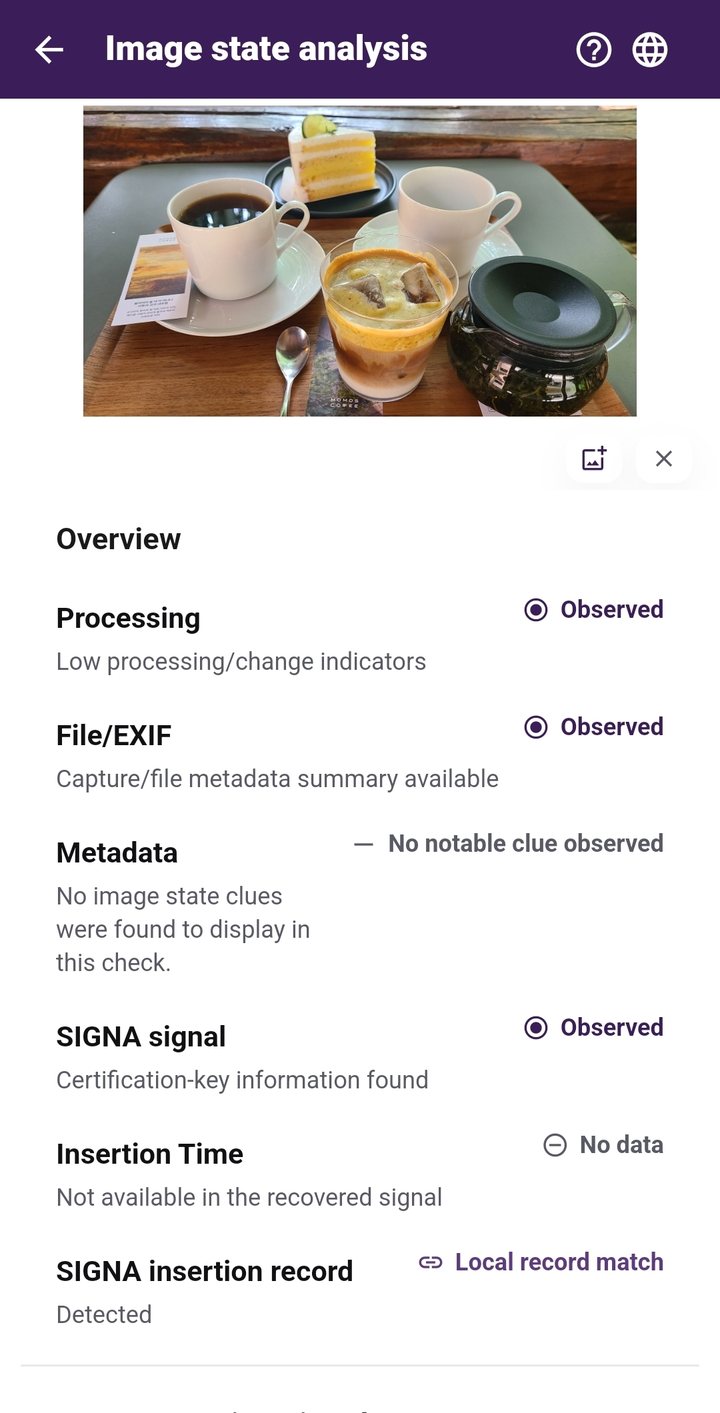
Bring the useful clues together in SIGNA Inspect
SIGNA’s Android app combines visible watermarking, an invisible SIGNA signal and on-device image review. Its inspection flow can present available metadata, processing-related observations and signal-related information. Selected photos are processed on the device rather than uploaded to SIGNA AI Lab for routine image processing.
Instead of jumping between separate tools, SIGNA Inspect brings supported metadata, image-state observations and SIGNA signal information into one on-device review. That makes it easier to see what is actually present in the file you have and compare multiple clues before deciding what they mean.
Open it in SIGNA Inspect to review supported metadata, image-state observations and SIGNA signal information together on your device. The selected photo is processed on-device rather than uploaded to SIGNA AI Lab for routine image processing.
Primary references
CIPA — Exif Version 3.1 standard
Google Search Help — Search with an image on Google
Google Search Help — Learn more about an image
Google Gemini — Verify AI-generated images, videos and audio
Check what your photo can actually tell you
SIGNA for Android brings image review and photo preparation together on your device. Inspect available image information, check for a SIGNA signal, or prepare a photo before sharing.